
I know, I know—you’re probably trying to avoid this. Your client has just dropped the dreaded request: ‘We need to export the data to Excel.’ How hard could it be, right?
Well, in theory, it shouldn’t be hard. But here’s the reality: Tableau’s export capabilities are, well… limited. If you’ve been in the trenches like I have, you’ve probably tried every trick in the book—and still, it’s not quite enough.
I’ve read (and tested) all the brilliant hacks from the DataFam, including Andy Kriebel’s legendary post: The Greatest Tableau Tip EVER: Exporting Made Simple! I even went beyond those tips (and I might share those experiments in a future post). But despite all that effort, I kept hitting the same wall: Tableau just wasn’t cutting it for what I needed.
But here’s the kicker: after months of fighting with Tableau’s constraints and trying to meet every single export specification, I realized something. If the end goal is Excel… why not just use Excel? Wait, what? Yes, you heard me. What if I told you the simplest, most flexible solution was hiding in plain sight all along? Sharepoint’s (or OneDrive’s) native Excel Downloadable Links.
Voilà! No more workarounds. Just a clean, straightforward solution that actually works. Let me show you how I cracked the code.

Tutorial
Note: This tutorial uses OneDrive Microsoft 365 free version, but works equally well with other Office 365 subscriptions.
Excel Setup Steps
Step 1: Prepare Your Excel File
- Ensure your Excel file contains the data you want users to download from your Tableau dashboard.
Step 2: Upload Excel File to OneDrive
- Sign in to your OneDrive account
- Upload your Excel file to OneDrive
- Navigate to the uploaded file
Step 3: Create a Shareable Download Link
- Right-click on your Excel file in OneDrive
- Select “Share” from the context menu
- Click “Copy link” to generate a shareable URL
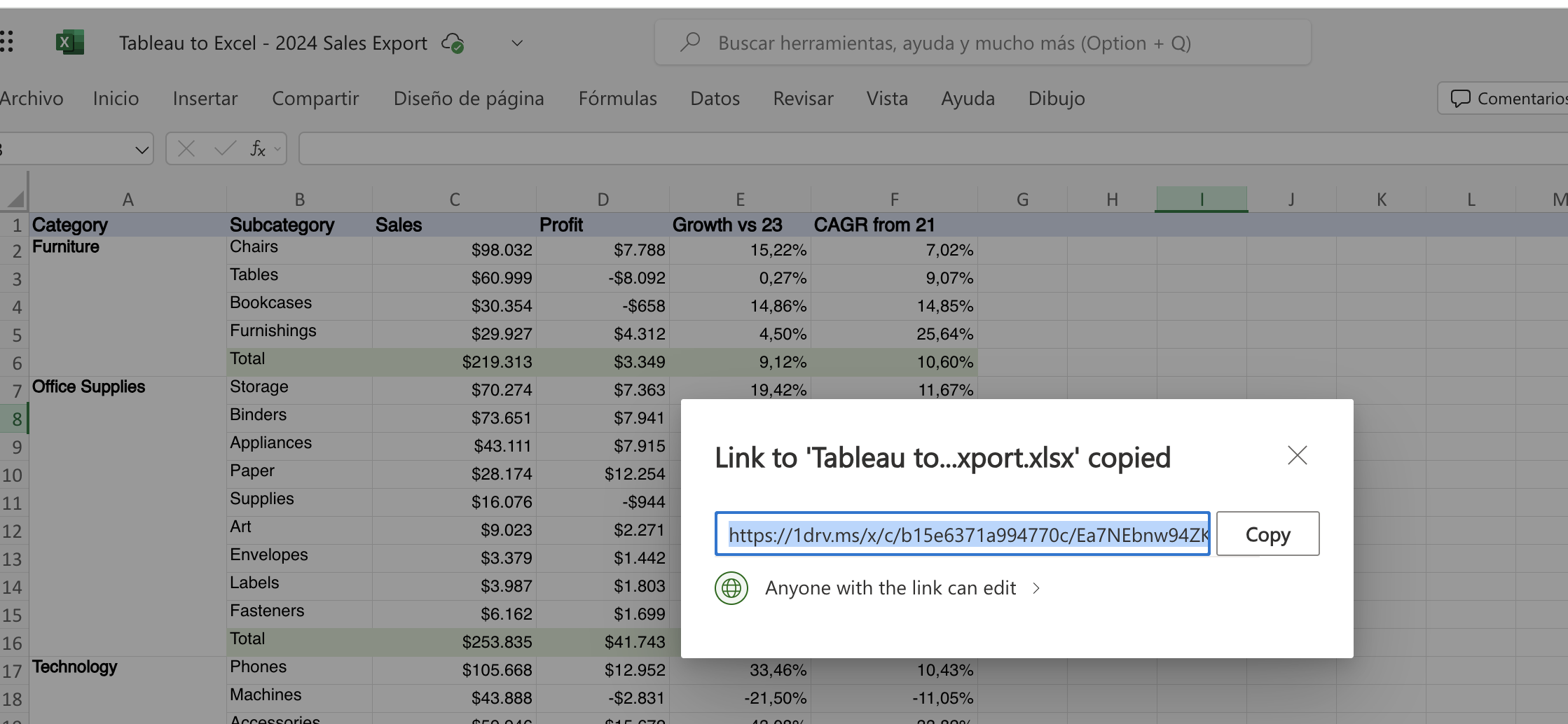
The original link will look something like this:
https://1drv.ms/x/c/b15e6371a994770c/Ea7NEbnw94ZKoR66vwT7C34Bhf5jZi3x4pCq5dpk13mlfA?e=WZHBSYStep 4: Modify the Link for Direct Download
- Copy the shareable link to a text editor
- Replace the query parameters (everything after the
?) with?download=1
Your modified link should look like this:
https://1drv.ms/x/c/b15e6371a994770c/Ea7NEbnw94ZKoR66vwT7C34Bhf5jZi3x4pCq5dpk13mlfA?download=1Tableau Dashboard Steps
Step 5: Build Your Dashboard
Create your visualizations and design your dashboard layout as needed.
Step 6: Prepare the Download Icon
- Download an Excel icon of your preference
- I downloaded mine from: Microsoft Office Icons from Figma Community
- Save the icon to your computer
Step 7: Add the Download Button to Your Dashboard
- In your Tableau dashboard, drag an Image object from the Objects panel
- Set it as a Floating element for flexible positioning
- Browse and select your downloaded Excel icon
- Position the image element where you want the download button to appear
Step 8: Configure the Download Functionality
- Right-click on the image object and select Edit Image
- In the image properties dialog:
- Locate the URL field (labeled “URL Opened When Image is Clicked”)
- Paste your modified OneDrive download link from Step 4
- Click OK to save the changes
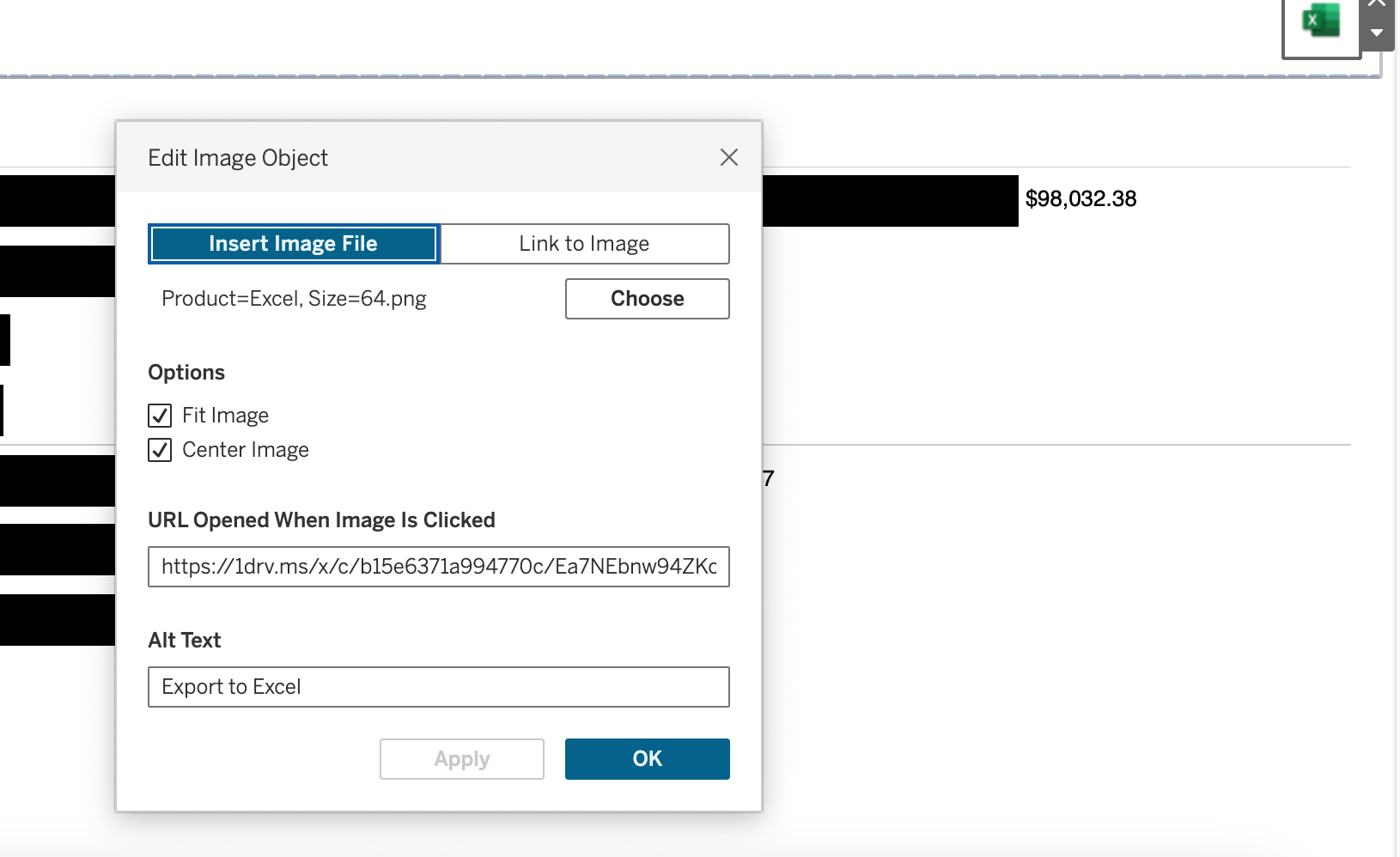
Step 9: Test Your Dashboard
- Publish your dashboard to Tableau Public or Tableau Server
- Test the download functionality by clicking the Excel icon
- Verify that the Excel file downloads correctly
Example Dashboard
You can see this functionality in action here: Tableau to Excel, Microsoft to the Rescue

Tips for Success
- Ensure your OneDrive sharing permissions allow public access
- Test the download link in a private/incognito browser window to verify it works for users without OneDrive access
- Consider using a visually clear icon that clearly indicates “Download Excel” functionality
- Position the download button in an intuitive location on your dashboard
Note: The content of this blog post has been enhanced with the assistance of Generative AI tools while maintaining my authentic voice and technical expertise. I believe in transparency about AI usage in content creation
 Graphika Analytics
Leave a comment